How to prepare the Ubuntu created by Hyper-V to be a Azure IoT Edge device
01 Mar 2022Create Unbunt VM using Hyper-V quick create
- Open Hyper-V Manager, select Quick Create
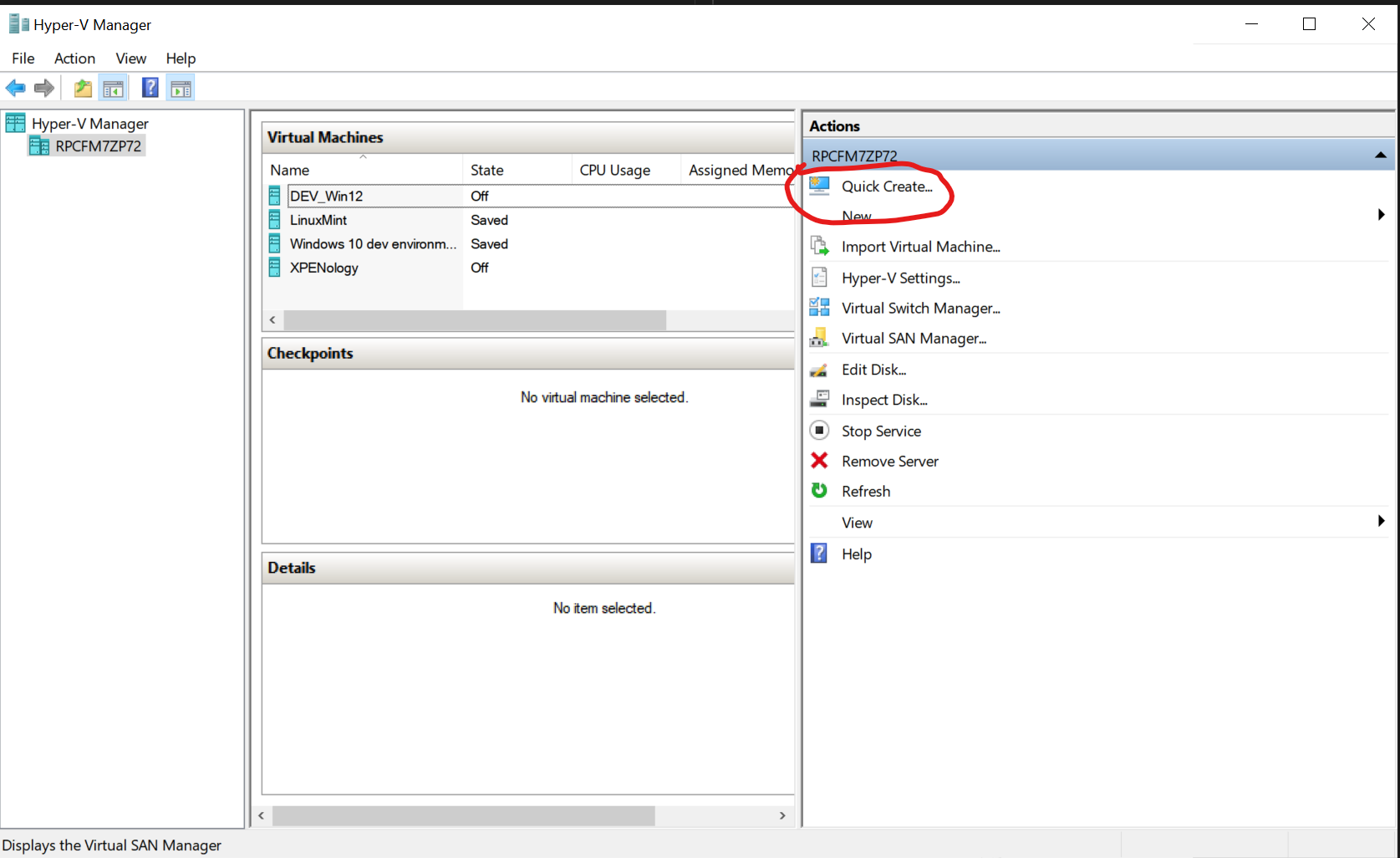
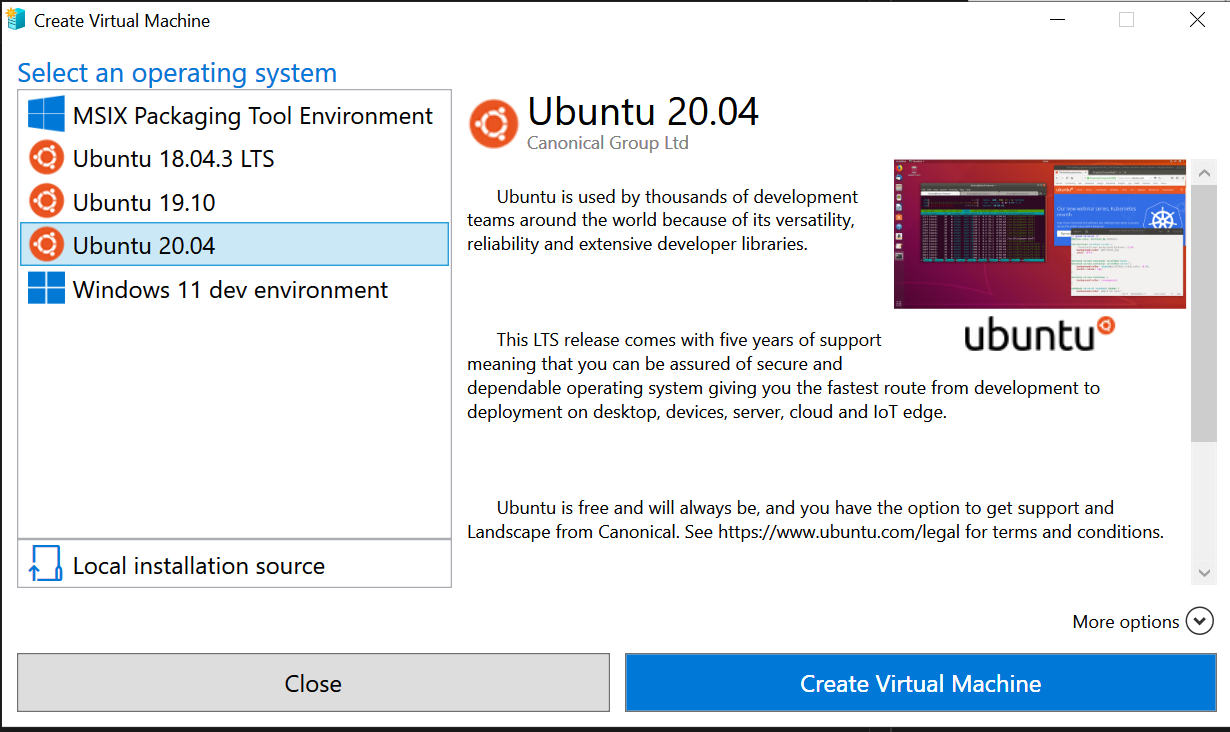
- Select Ubunto 20.04
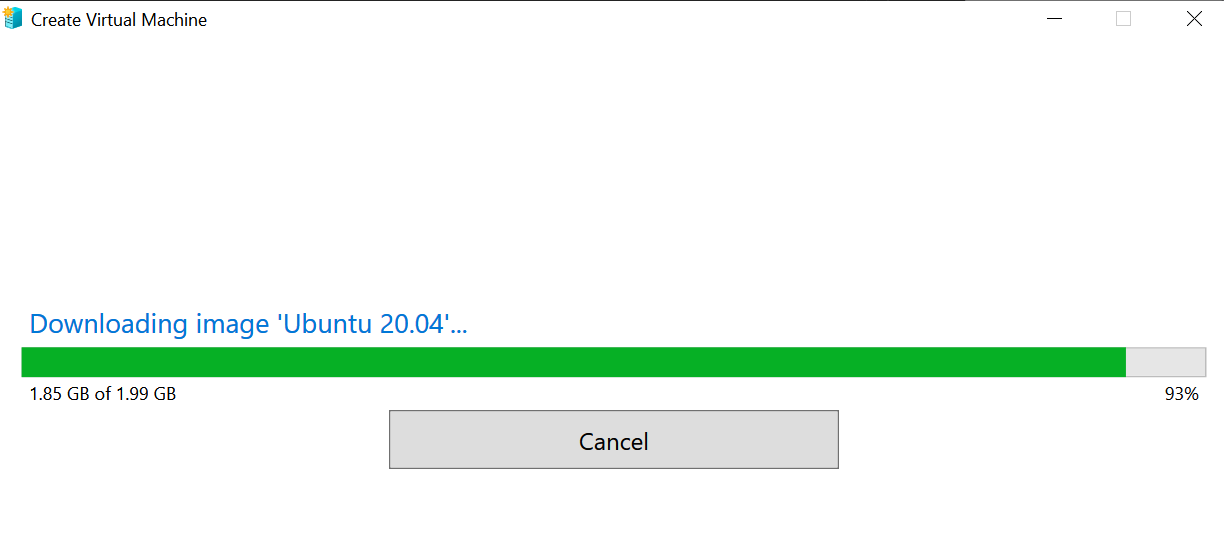
Depends on your internet connection, it is going to take awhile
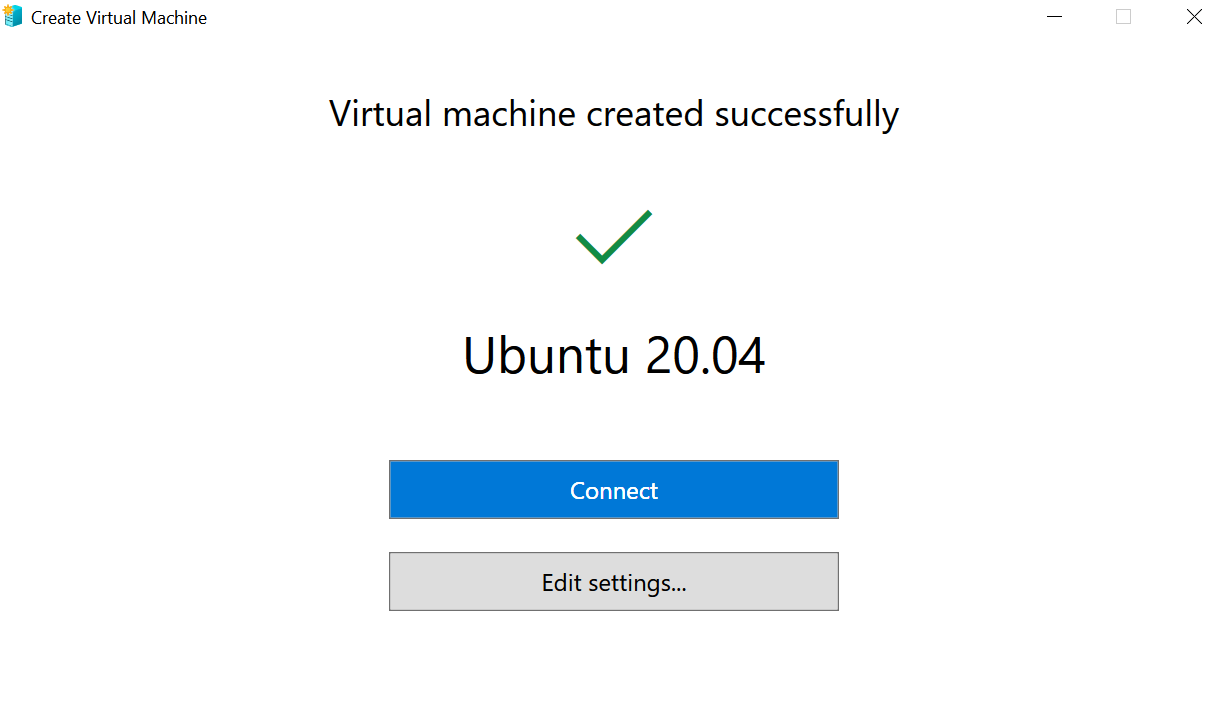
-
Click Edit Settings…
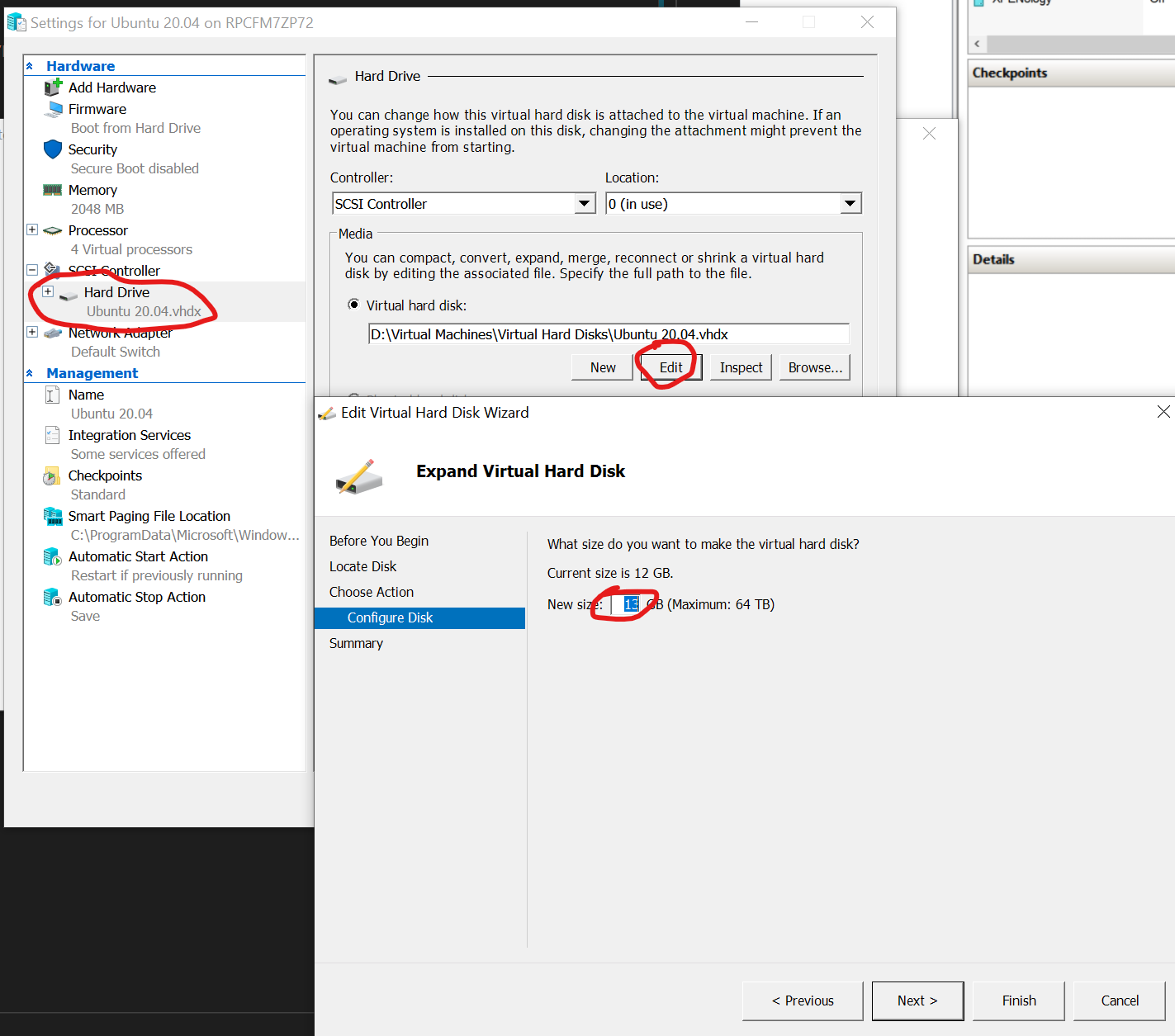 Give enough disk space (>100GB) to the virtual machine.
 -
Connect to the VM
Please follow the instruction on this post to expand the disk in Ubunto the all the disk space just allocated
- Update all the components.
Most likely when you installed the VM, some of the components are outdated
sudo apt install update
This will update all components to the latest.
- Enable SSH server
Sometime you don’t want to connect to the VM using Hyper-V, instead tools like Putty is preferred. In this case, the SSH server needs to be installed on the VM
 sudo apt update
 sudo apt install openssh-server
Once the installation is complete, the SSH service will start automatically. You can verify that SSH is running by typing
sudo systemctl status ssh
Press q to get back to the command line prompt
Ubunto shipped with Firewall configuration tool called UFW. make sure SSH port is allowed in the Firewall
sudo ufw allow ssh
- Register IoT edge device on IoT hub
- get the connection string information, it will be needed in later step
- Install on IoT Edge device
- Ubuntu 20.04
wget https://packages.microsoft.com/config/ubuntu/20.04/packages-microsoft-prod.deb -O packages-microsoft-prod.deb
sudo dpkg -i packages-microsoft-prod.deb
rm packages-microsoft-prod.deb
- Ubuntu 20.04
- Install a container engine
sudo apt-get update; \ sudo apt-get install moby-engine - Install IoT Edge runtime
sudo apt-get update; \ sudo apt-get install aziot-edge- to list other versions of IoT Edge and the IoT identity service that are avialble, use the following command
apt list -a aziot-edge aziot-identity-service - Provision the device with its cloud identity
sudo iotedge config mp --connection-string 'PASTE_DEVICE_CONNECTION_STRING_HERE'
sudo iotedge config apply
If you want to see the configuration file, you can open it
sudo nano /etc/aziot/config.tomlVerify successful configuration
- Check to see that the IoT Edge system service is running.
- to list other versions of IoT Edge and the IoT identity service that are avialble, use the following command
sudo iotedge system status
A successful status response is ok
- Check the service logs
sudo iotedge system logs - use the
checktool to verify configuration and connection status of the devicesudo iotedge check - view all modules running on the edge device.
- When the service starts for the first time, you should only see the
edgeAgentmodule running. The edgeAgent modules runs by default and helps to install and start any additional moduels that you deploy to your devicecsudo iotedge list
When you create a new IoT edge device, it will display the status code
417 -- The device's deployment configuration is not setin the Azure portal. This status is normal, and means that the device is ready to receive a moduel deployment. - When the service starts for the first time, you should only see the